Nifty screener and ideas - vol 2

As members will be aware I am a fan of using the stock screener to find potential opportunities. A little over six months has passed since Chris and I took over the responsibility for the Australian and New Zealand business and we continue to learn more everyday.
Much of these learnings have come from our great global team who are incredibly generous with their education and knowledge sharing.
Back in February 2023, I wrote about nifty criteria in the Screener. You can read the article here if you wish to have a refresh.
But we have been introduced to other criteria and tips that we hope you too will find useful in this Volume #2 of our Nifty criteria series. Hopefully they prove useful in your investigations.
Just to reiterate, I rarely use screens to produce a list that I run off and replicate. Rather I use them to identify possible opportunities that suit a particular thematic that I am looking for and then I will explore from there.
Display a number without screening on it.
We often receive queries from Members about how they can make a number appear in the Screener without actually filtering on it.
This so that we can see a figure eg display the EPS Growth figure irrespective if it is positive, negative or otherwise. I find this particularly useful when for example I want to know the last closing price irrespective of whether it is $23 or $0.23.
Within the Screen you will see that there is a button called, “Customise”
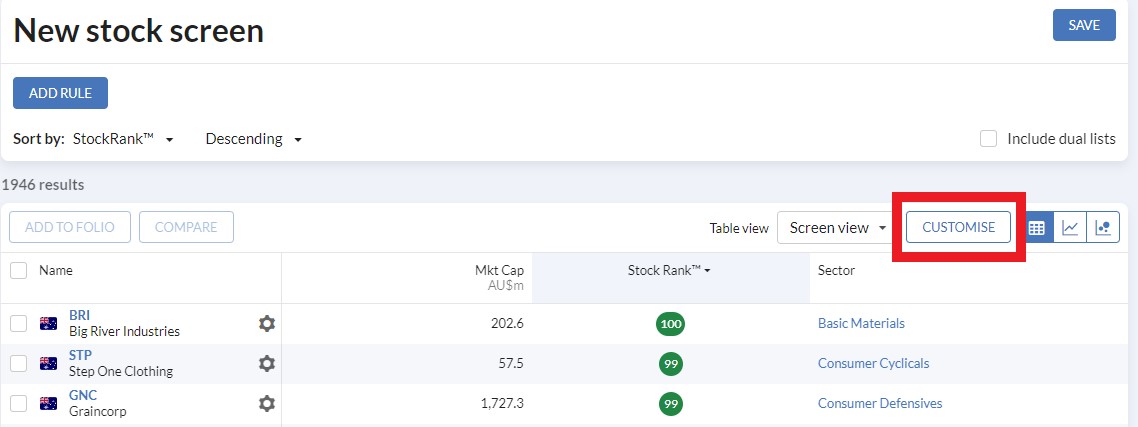
By clicking on this button you can customise the display you are looking at, including adding columns for data that you are not scanning.
For example…. Say I run a scan for companies with a StockRank greater than 90, but I also want to see the share price, the price for the day as a percentage and how the stock has done against the market for the past week.
My first step would be to “Add Rule” of StockRank greater than 90
Once I have done that I would click on “customise”
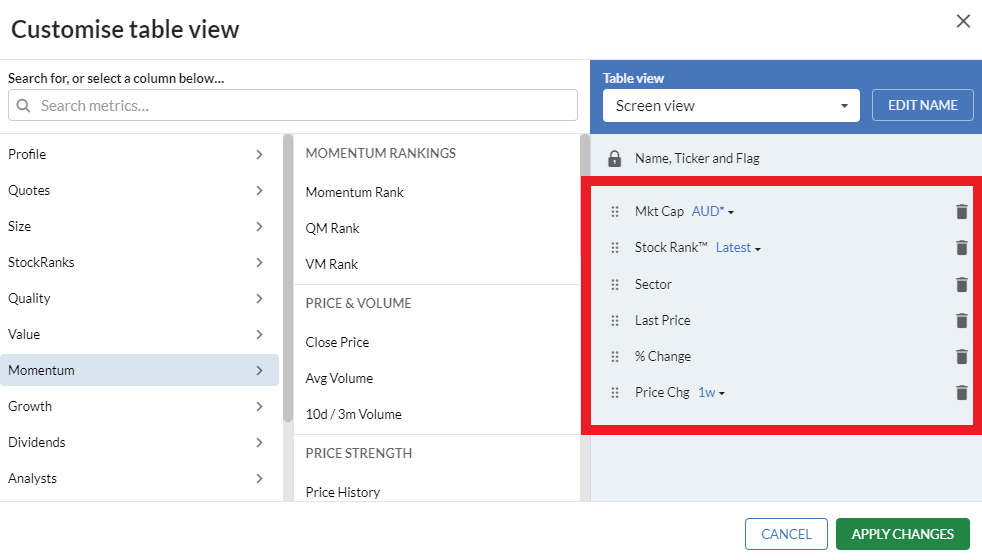
The current display is in the Blue Box, but if I want to add an item without filtering on it. I would just type in the search bar and add it over. Here is what it would look like if I add Last price, price change% and Absolute price change 1W
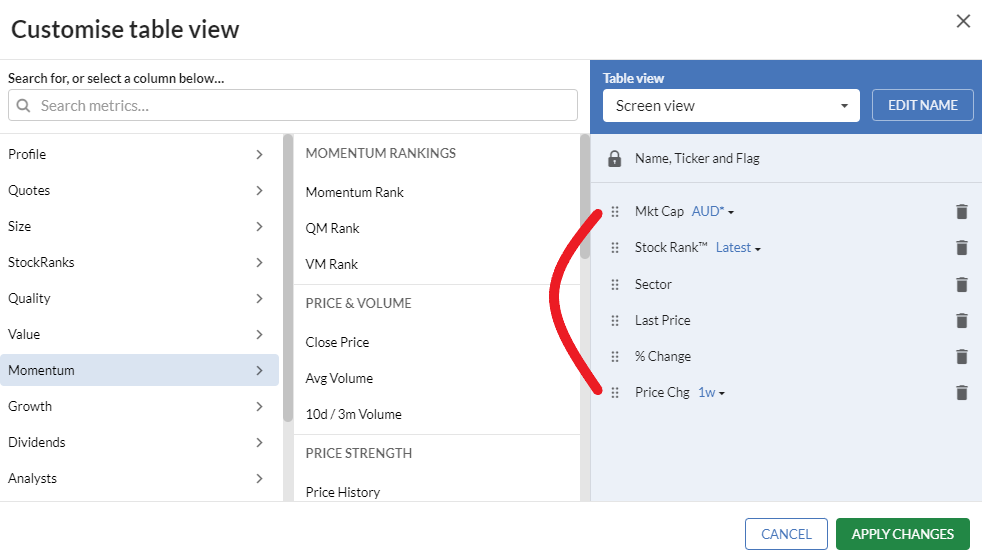
I can even change the order of the columns by clicking and dragging on the item. Here I am moving Market Capitalisation to the back.
Once I have made my changes i will click on “Apply Changes”
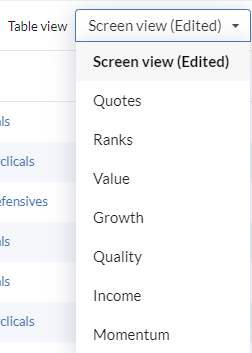
I have made these changes to the screener tool so these default criteria will appear when I run a scan. But likewise you can make additions (or removals) from any of the predefined levels. Just select one and then click on Customise once again and follow the same process.
Group your data using the separator
Further to customise the display to include other information, you can also add a line separator to make it easier to view the data group in a way that makes sense.
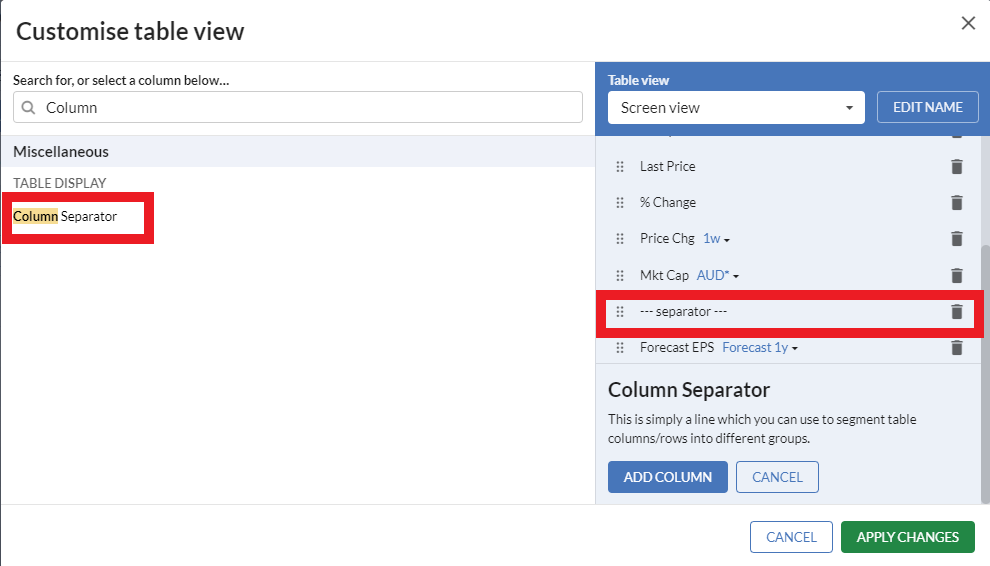
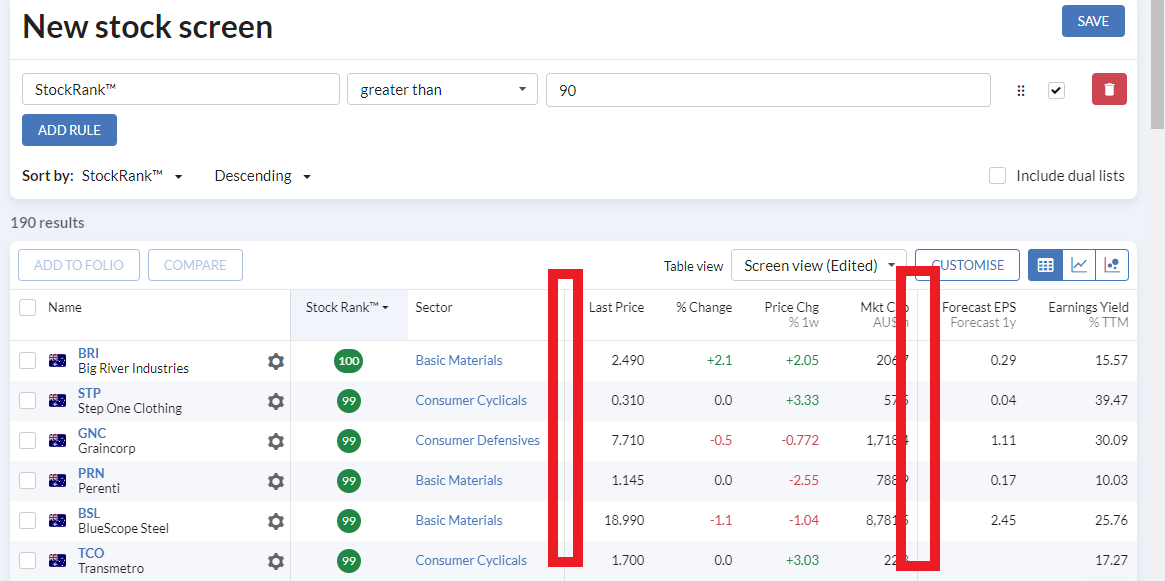
Simply within the search field select “Column Separator” and add it. Then simply move it to the position you wish. In my example above I have moved it to break up the price information from the EPS information.
Don’t miss a dual listed company
This one is an example of how even the bleeding obvious can be missed by someone (ie Me) despite looking at it every day.
Previously when I was compiling my 52 week high and Shine Zone lists in the Momentum Monday articles I would manually look to see if any of the companies were listed both on the ASX and NSX.
However after staring me in the face for weeks, I finally noticed the “include dual list” checkbox

When this box is ticked, it allows me to see stocks who qualify for my screen, both their Australian listing and any other they possess. This is particularly useful for our New Zealand members who want to know whether there is a local company rather than just the Australian listing.
For example Fisher and Paykel Healthcare, Fletcher Building, SmartPay etc
Top stocks for a specific indicator within a specific industry
A member asked recently how they can scan based on the colours that appear next to specific financial measures within the stock report. For example:
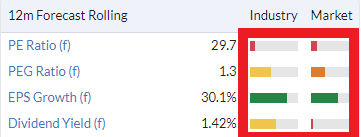
In essence how can they scan for stocks in the green for the sector and market, like this example with Forecast EPS Growth .
The way you do that is within the Advanced scanning feature.
So let us take this example. To be in the green zone a stock must rank in the top 20% of that indicator. (To learn more on the StockRank colours read here)
Within the Screener, add a new rule and once you have done that click on “Add Advanced Rule”
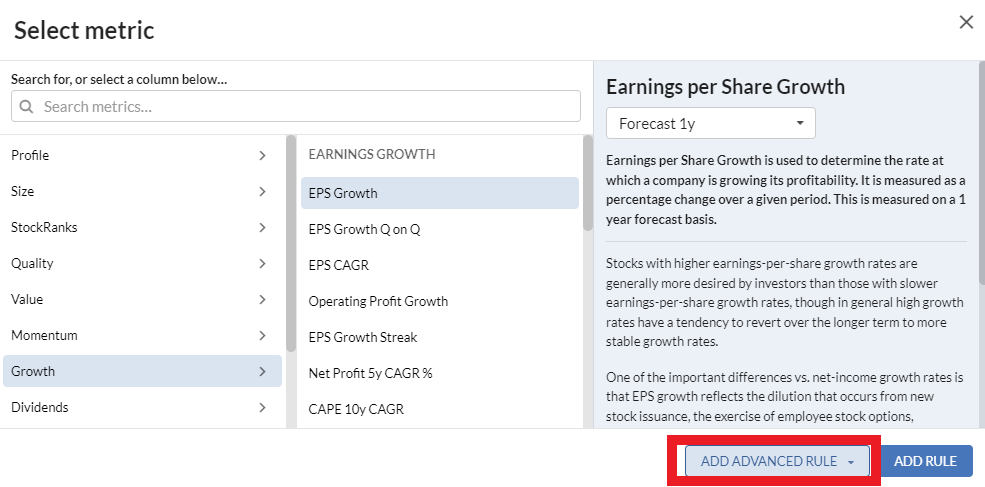
Once you have done that select “Ranking Rule”

Here you can then change “The Rank in Market” or “The Rank in Industry”. When you say that this is greater than 80 it means you are looking for stocks in the green zone (for this case it is EPS Forecast 1yr.)
Here is an article on the traffic light system within Stockopedia should you want to learn more..
Stocks with a measure better than the market average
Say we wish to find stocks that have Margins at least 10% better than the broader market.
It is a similar process to the above, except this time in the advance rules select “average rule”

I found this article particularly useful for helping me understand this function. Please read it here.
______
Important Information: Stockopedia Ltd ABN 39 757 874 670 UK business registration number 0637267 (“Stockopedia”) is an Authorised Representative of Daylight Financial Group Pty Ltd ABN 77 633 984 773 (“DFGPL”) which is the holder of an Australian Financial Services Licence (AFS Licence No. 521404).
Information in this commentary is current as at date prepared unless otherwise stated. However, please bear in mind that investments can go up or down in value, and that past performance is not a reliable indicator of future performance. For more Important Information please refer to the Disclaimer section of this website.
This communication may contain general financial product advice. It has been prepared without taking into account your personal circumstances, and you should therefore consider its appropriateness in light of your objectives, financial circumstances and needs before acting on it.
If our advice relates to the acquisition or possible acquisition of a particular financial product, you should obtain a copy of and consider the Product Disclosure Statement (PDS) before making any decision.
Disclaimer
This is not financial advice. Our content is intended to be used and must be used for information and education purposes only. Please read our disclaimer and terms and conditions to understand our obligations.
2 comments
Good stuff Elio, keep these articles coming. I've been a Stocko subscriber for probably 5 years but am discovering I have been driving it in second gear for all that time.
Thanks for the vote of confidence. As I learn more I will share it as well. BTW Not saying anything but being in a lower gear is a smart move when heading downhill.... an analogy for the times perhaps? We shall see.